

In Shared Catalogs, once you have logged in, you land on the product gallery. This article explains how to select your catalog, switch between gallery and list views, group product variations, and use the search bar and filters to find specific products.
Before you can access Shared Catalogs, you need to create an account from your invitation email. See Access Shared Catalogs for details.
Select your catalog
In Shared Catalogs, you may have access to multiple catalogs, each shared by your PIM point of contact. All available catalogs appear in the catalog selector at the top of the page.
To open a specific catalog, click its label. The product grid updates to show the products in the selected catalog. To switch to a different catalog, click a different label.
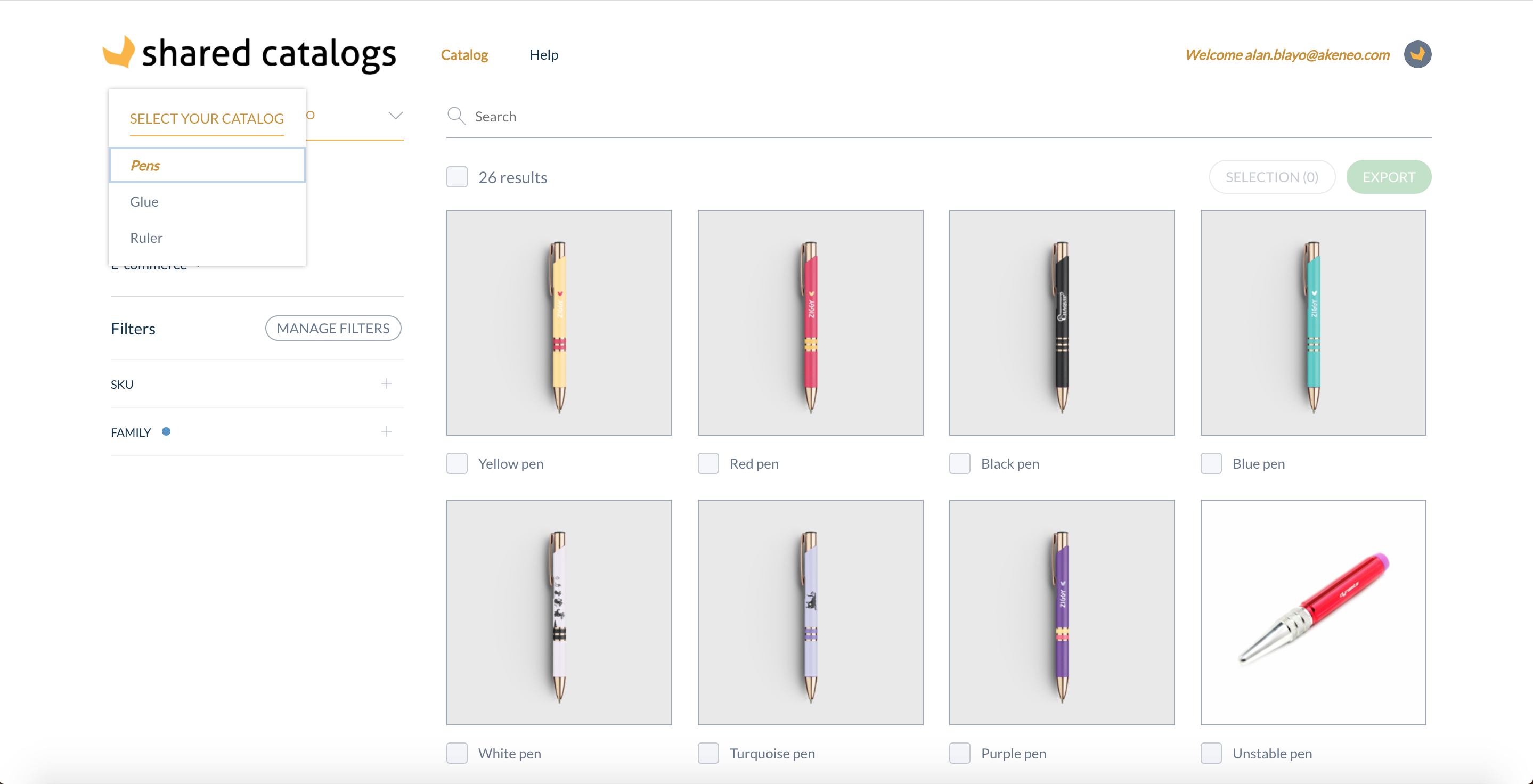
The catalog selector in Shared Catalogs, showing the available catalogs as clickable labels at the top of the page.
Select your view
In Shared Catalogs, you can switch between two display modes for the product grid: gallery view and list view. Use the Display dropdown to switch between them.
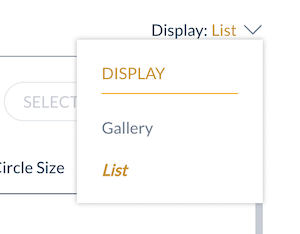
The Display dropdown in Shared Catalogs, used to switch between gallery view and list view.
Gallery view
To display large product images and labels, select Gallery view from the Display dropdown.
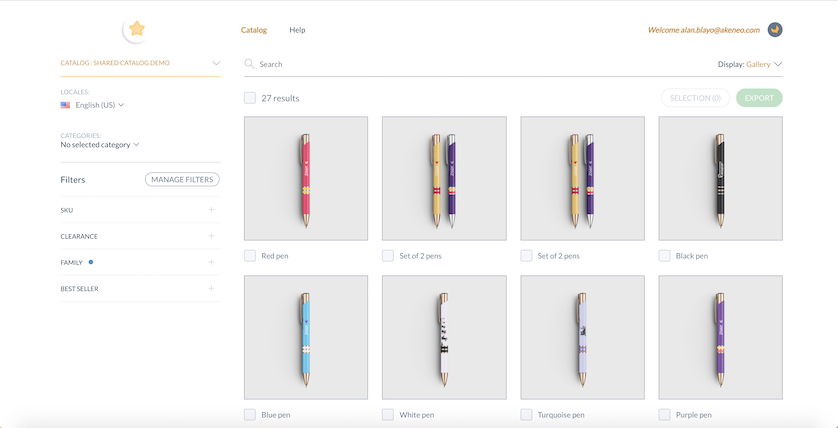
The gallery view in Shared Catalogs, displaying large product images arranged in a grid.
List view
To display more detailed product information per product, select List view from the Display dropdown. In list view, you can also customize and reorder the columns shown. To do so, click the three vertical dots icon in the top-right corner of the list.
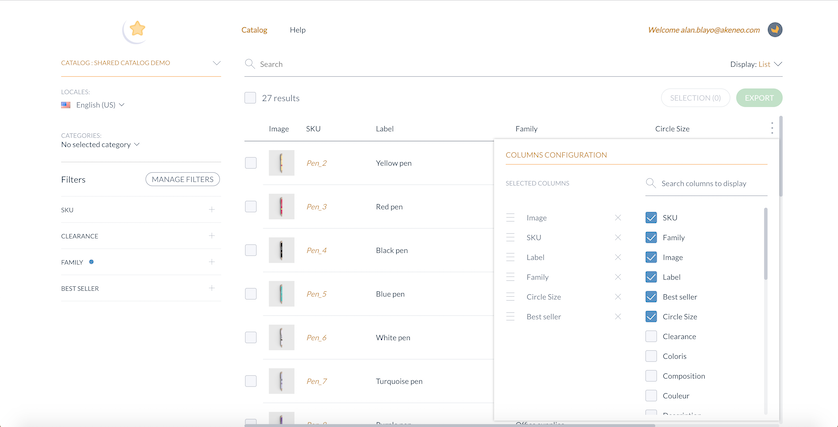
The list view in Shared Catalogs, displaying products in a table. The three vertical dots icon in the top-right corner opens column customization options.
Group variations
In Shared Catalogs, variations are products based on the same model but differing in specific attributes — for example, size or color.
By default, variations are displayed ungrouped. To group variations by their parent model, use the group variations toggle in the toolbar. This works in both gallery and list views.
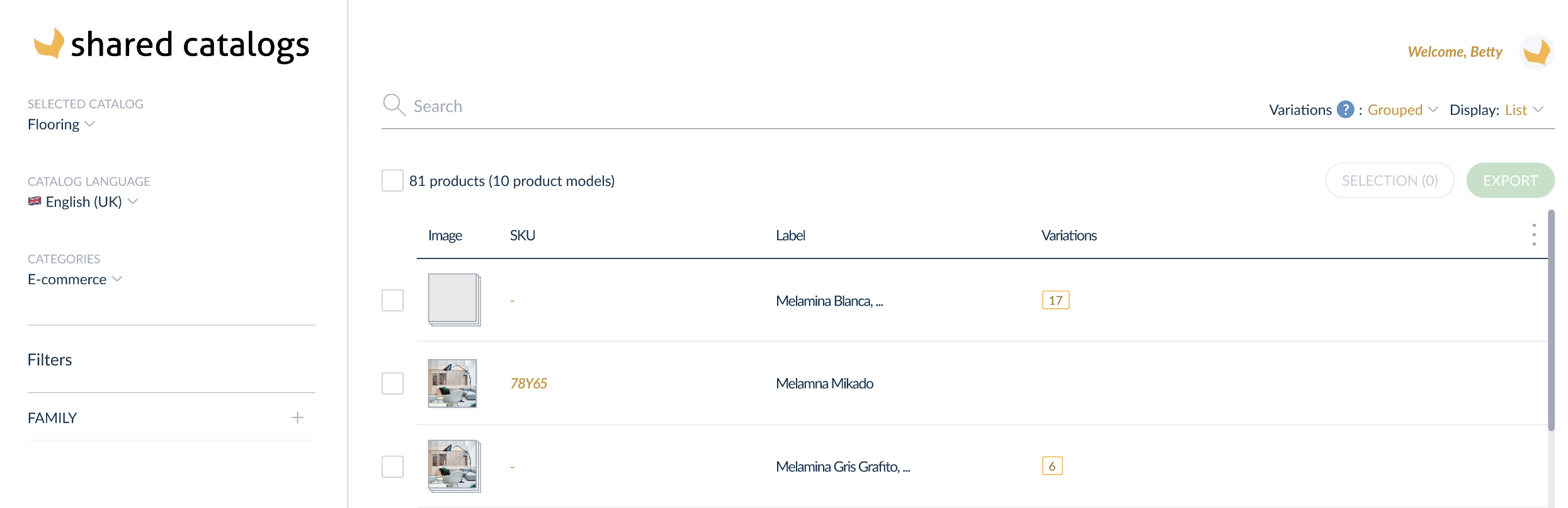
The group variations toggle in Shared Catalogs. When enabled, product variants sharing the same model are grouped together.
When variations are grouped, the Variations column shows the total number of variants for each product model.
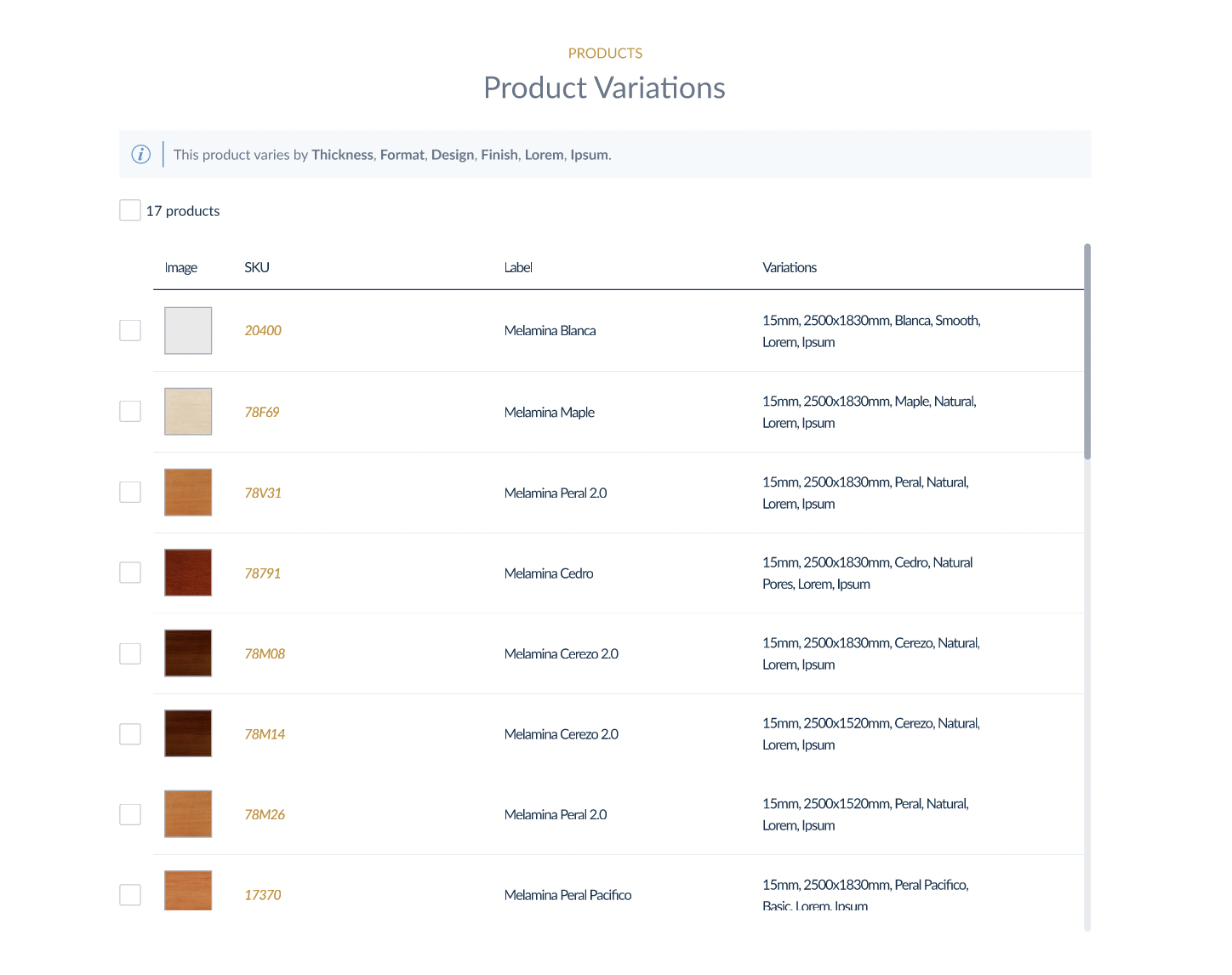
The Variations column in list view, showing the total count of variants for each product model when grouping is enabled.
A blue information banner shows the axes — the attributes by which the variants differ from each other. The corresponding values appear in the Variations column. Click a product to open its dedicated product page with all details.
Searching and filtering on the product gallery
In Shared Catalogs, you can use the search bar and filters to narrow down the products displayed in your product gallery. Your PIM point of contact defines which products appear in the catalog and which attributes and locales are available.
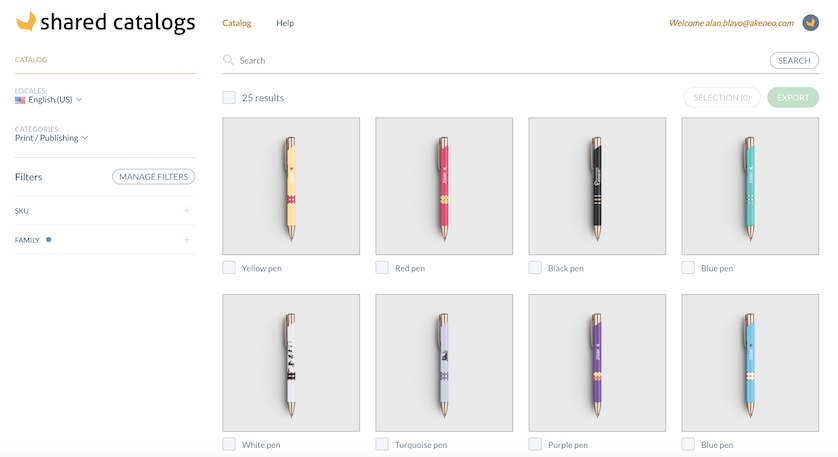
The Shared Catalogs product gallery, with the search bar at the top and the filter panel on the left side.
The search bar
In Shared Catalogs, use the search bar to find specific products by typing any text-like product information — such as the product identifier, label, or description. Press Return to display the results in the grid.

The search bar in Shared Catalogs, used to search for products by identifier, label, or description.
The Shared Catalogs search uses a 2-character n-gram model. For example, if you search for "cotton," the results include all products containing any of these character pairs: "co," "ot," "tt," "to," "on."
The filters
Locales
The locale filter lets you switch the language in which product information is displayed. Selecting a different locale updates all product attribute values shown in the gallery and list view. Your PIM point of contact defines which locales are available.
Categories
In Shared Catalogs, the categories filter lets you display only products belonging to specific categories. In Akeneo PIM, a Category is used to classify products.
You can select several categories to ease your product search and display the most relevant products.
Selecting a category automatically selects all its related sub-categories.
SKU
The SKU filter lets you search for one or more specific products by their identifier. Enter a single SKU or a list of SKUs — separated by spaces, commas, or semicolons — to display only those products in the gallery.
You can also use the in list operator to enter multiple identifiers separated by commas or spaces and search for specific products more efficiently.
Family
Use the Family filter to display products belonging to a specific Family in Akeneo PIM.
Attributes filters
In Shared Catalogs, you can use additional attribute filters to refine your product search beyond the default SKU and Family filters.
Manage Filters
To add more attributes as filters, click Manage Filters and start typing in the search bar. A subset of your selected filters appears on the left side of the screen. You can also reorder them to keep your most-used filters at the top.
Table Attributes and Asset collections are not supported as filters.
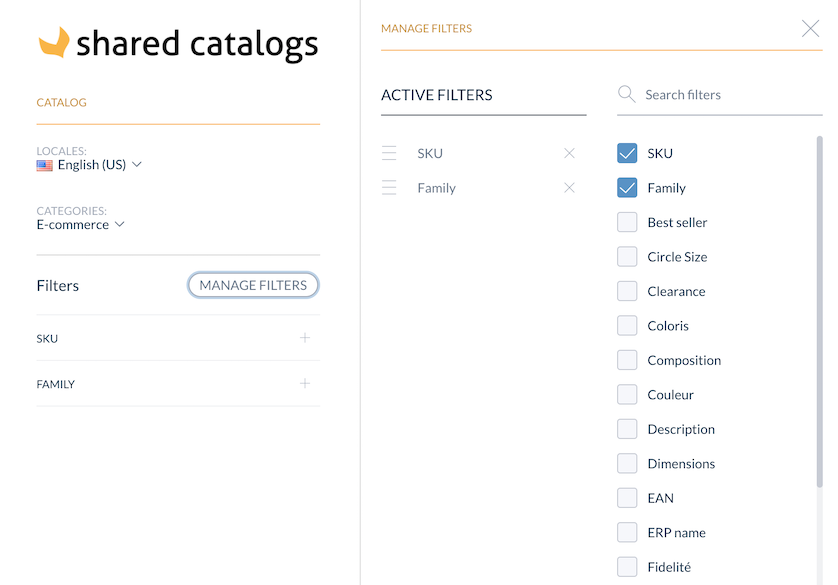
The Manage Filters panel in Shared Catalogs, listing available attributes that can be added as filters on the left side of the product gallery.
Choose your operator
When you add a filter, you can select an operator to define how the filter is applied. The operators available depend on the attribute type:
- Logic operators: contains, does not contain, is equal to, starts with
- Mathematics operators: =, >, <, ≥, ≤
- Emptiness operators: empty, not empty
Use your filters
To apply a filter, click on it in the left panel to activate it. For filters that require a value, a text field appears where you can type the product information you want to filter on.
You can combine multiple filters and operators to build a precise search. For example, to display only black cellphones priced between €400 and €600: select the Color attribute filter and choose Black, then add the Price filter and use the Between operator with "From €400 To €600." The product gallery updates to show only matching products.
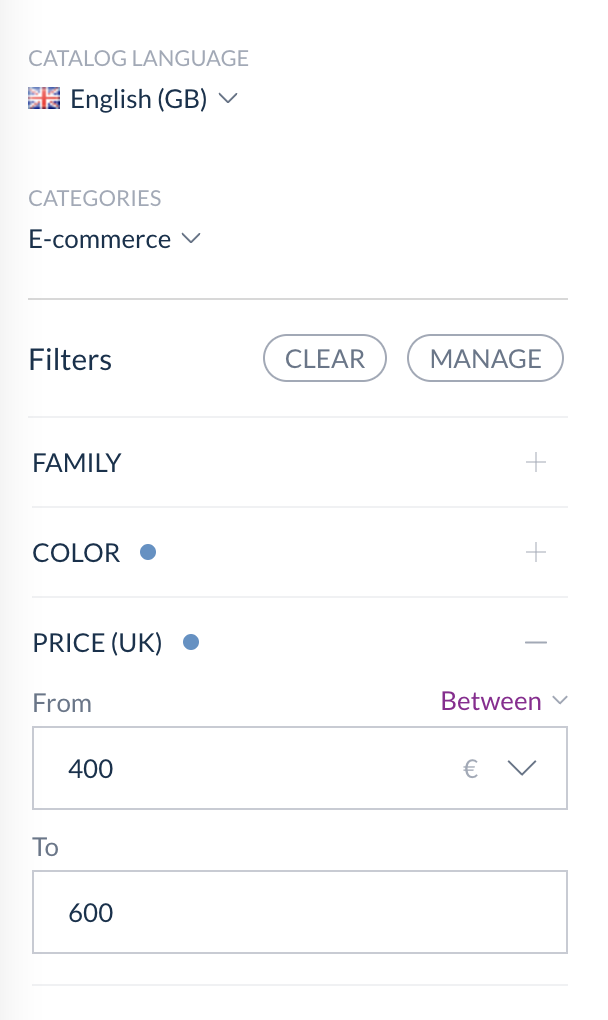
An example of combined filters in Shared Catalogs: the Color filter set to "Black" and the Price filter using the "Between" operator.
Loading filter options may take longer when the number of options is large.
To reset a filter's value while keeping it visible in the panel, click Clear.