

In Shared Catalogs, clicking on a product in the gallery or list view opens that product's dedicated product page. The product page is divided into four sections:
- Attributes — all product attributes shared in the catalog, filterable by locale
- Media — images and files associated with the product
- Variations — related product variants based on the same model
- Associations — products linked to the current product (alternatives, substitutions, cross-sell/up-sell)
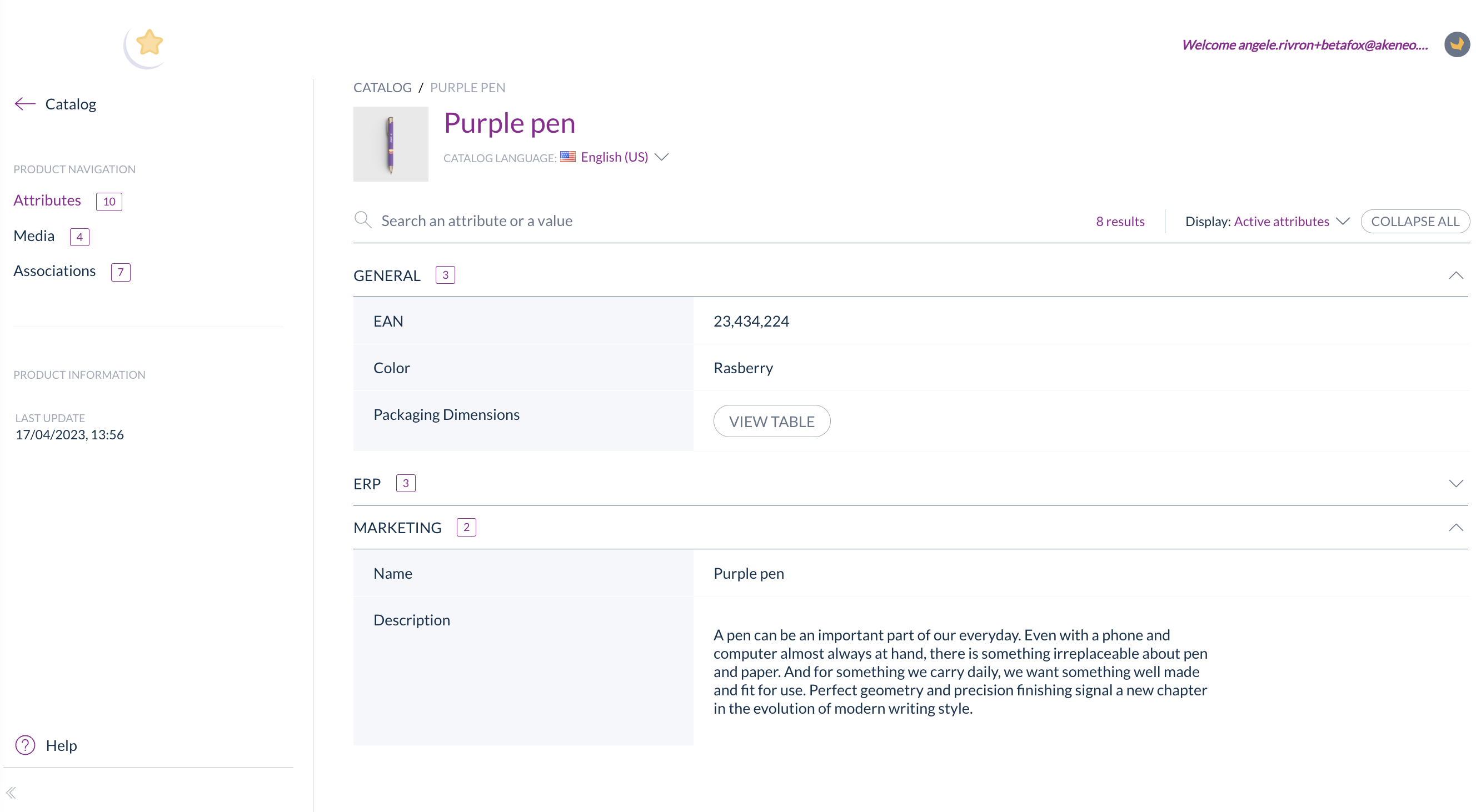
The Shared Catalogs product page, with the four sections — Attributes, Media, Variations, and Associations — accessible from the top navigation.
Attributes
The Attributes section of the Shared Catalogs product page shows all the product attributes shared by your catalog administrator (your PIM point of contact).
To view product information in a different language, use the locale filter at the top of the section. All product information updates to reflect the selected locale.
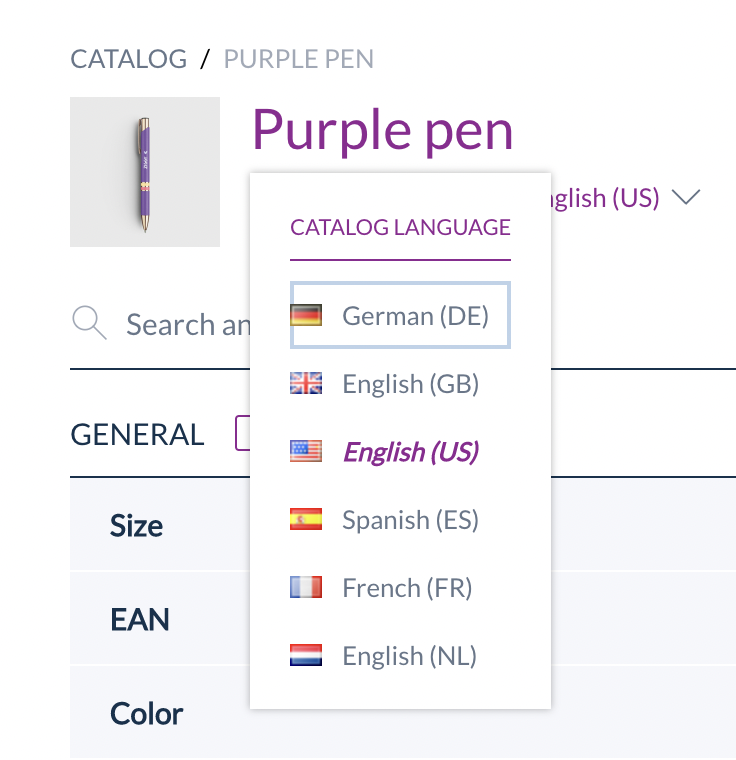
The locale filter at the top of the Attributes section, used to switch the language in which product information is displayed.
Attribute groups can be collapsed or expanded all at once using the Collapse All / Expand All button, or individually by clicking each group header.
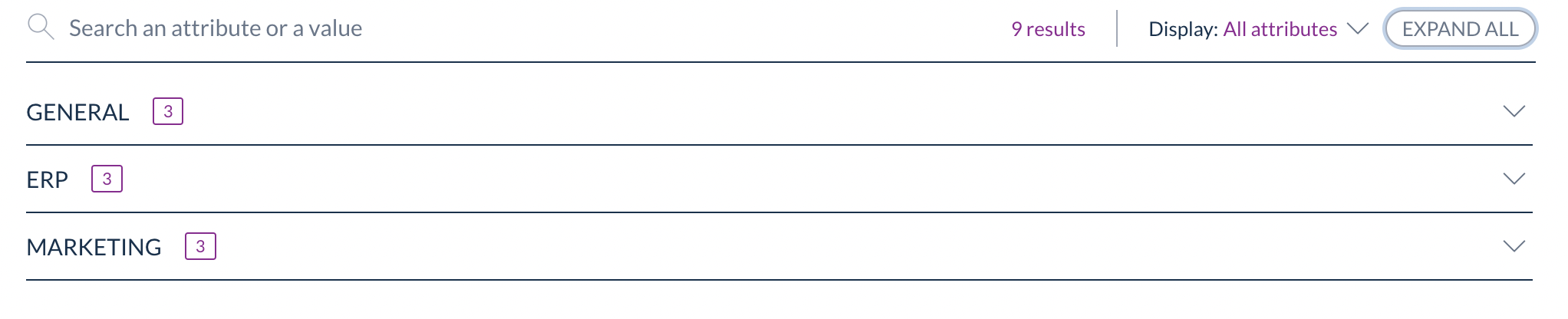
The Collapse All / Expand All controls for managing attribute group visibility.
Use the search bar at the top of the page to search for a specific attribute label or value.

The search bar, used to find a specific attribute by its label or value.
An empty attribute value is represented by a dash.
Use the Display filter at the top of the page to control which attributes are shown:
- All attributes — shows all attributes, including those with empty values
- Active attributes — hides attributes with empty values

The Display filter, with options to show all attributes or only those with a value.
Media
The Media section of the Shared Catalogs product page lets you preview all files and images associated with the product. You can select and download multiple media files — or all of them at once — directly from this section. Media shared via source links cannot be downloaded.
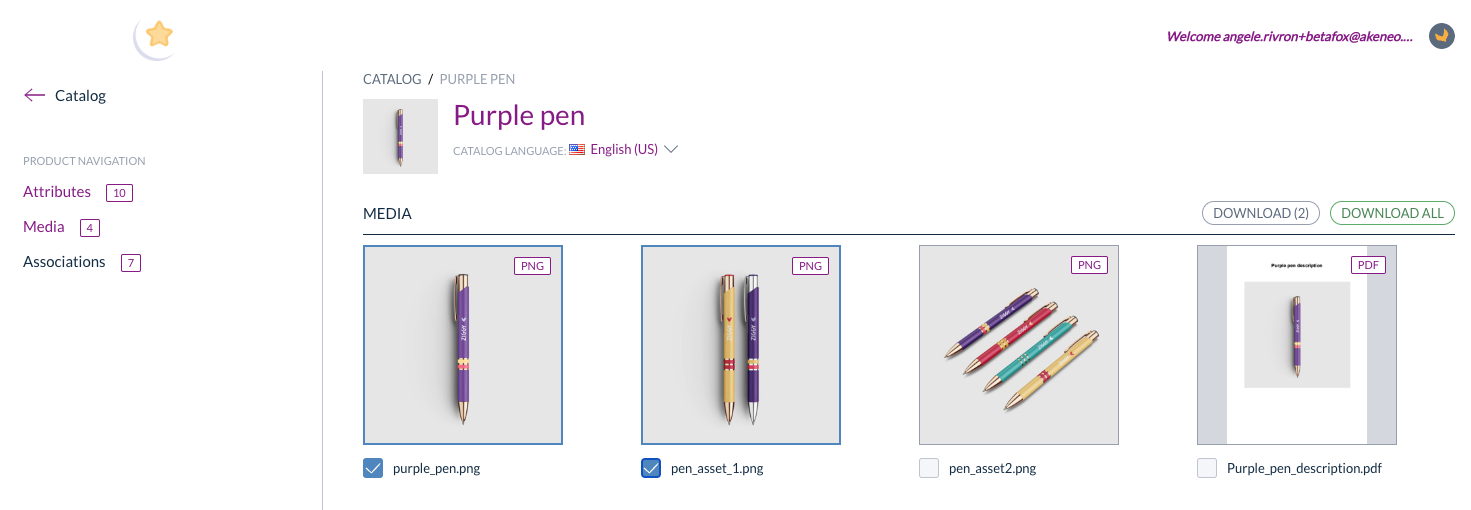
The Media section, showing product images and files with options to select and download.
Only the following file formats are displayed in the Media section: png, jpeg, jpg, gif, tif, webp, pdf, ppt, pptx, and mp4. The media field may be empty if no files have been associated with the product.
To preview a media file in full, click on it. A preview pop-in opens with a navigation bar to browse all media files for this product. You can also download individual files from the preview using the dedicated download button.
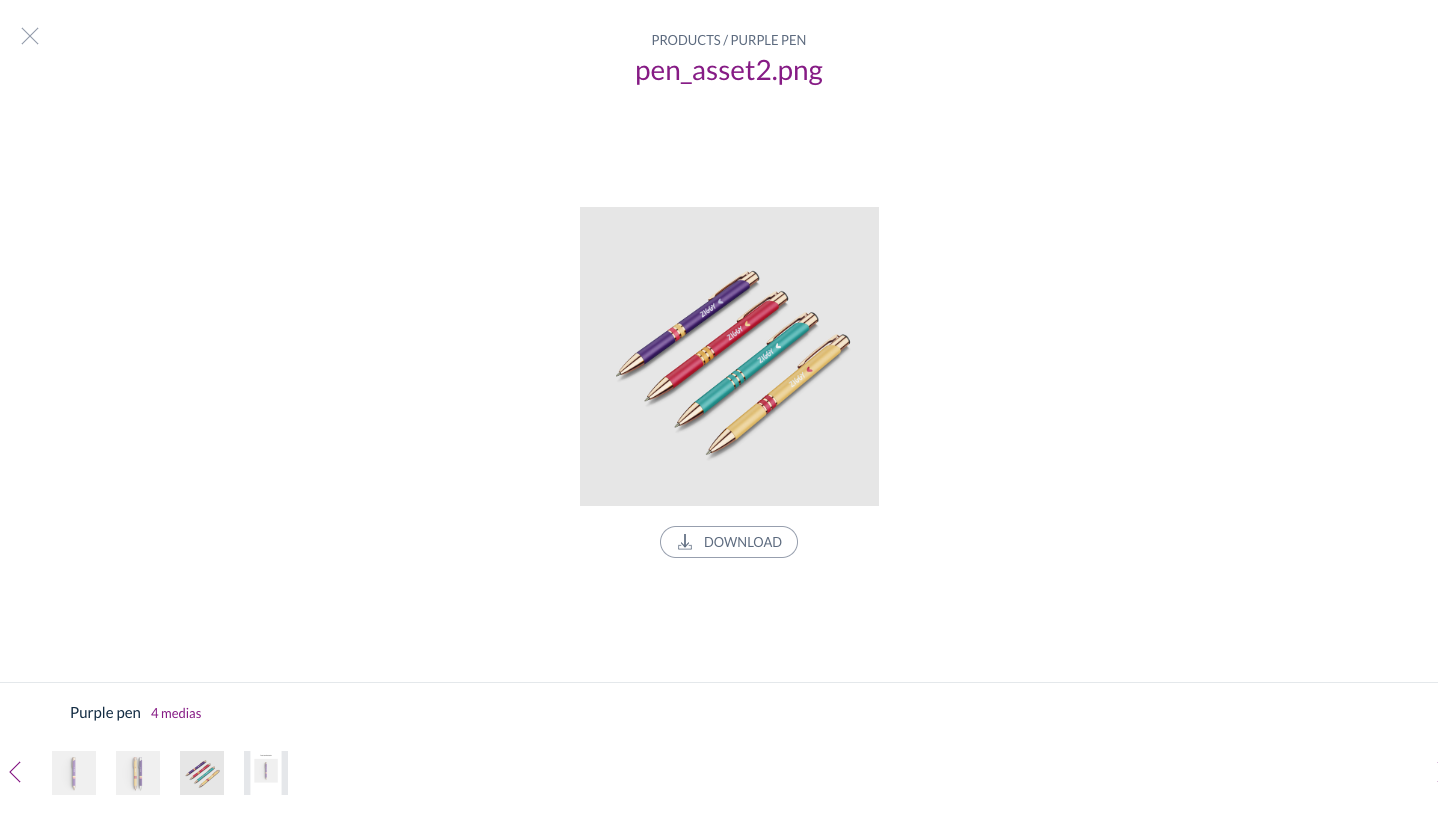
The media preview pop-in, which allows full-screen viewing and navigation between all media files linked to the product.
Both the Attributes and Media sections display the date when the product was last updated by someone in your organization.
The last-updated timestamp, visible in both the Attributes and Media sections.
Variations
The Variations section of the Shared Catalogs product page lists all product variants that share the same base model but differ in one or more attributes — for example, size or color.
A blue information banner at the top of the section identifies the axes (the attributes) by which the variants differ from each other. The value for each axis is shown in the variations column for each row.
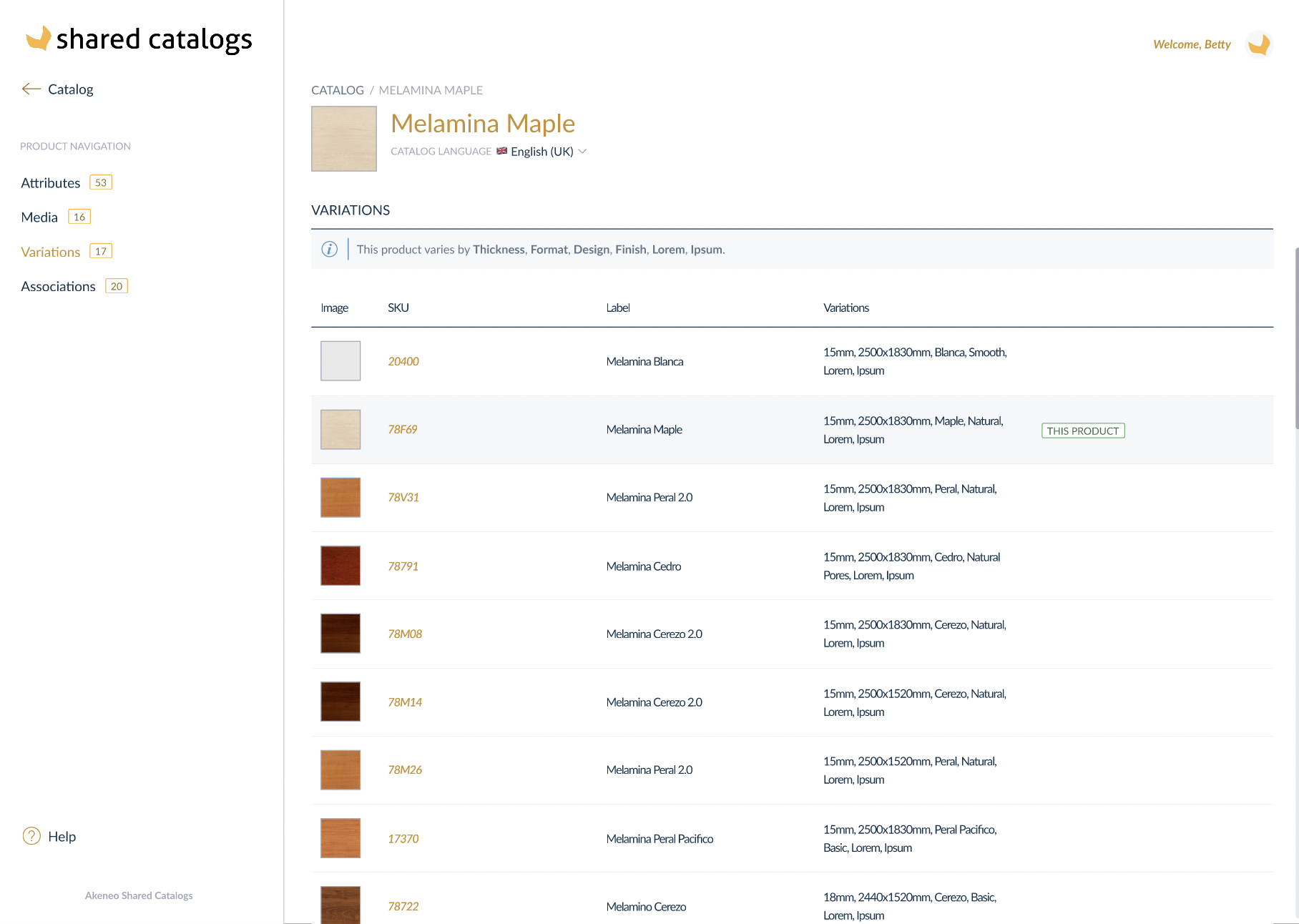
The Variations section, with the blue information banner showing which axes differentiate the variants (e.g., size) and the corresponding values in each row.
To customize the columns shown in the variations table, click the three vertical dots icon in the top-right corner of the list and select the attributes you want to display or reorder them.
Associations
The Associations section of the Shared Catalogs product page shows all products linked to the product you are currently viewing.
Association types describe the nature of the relationship between products — for example, alternative products, substitutions, cross-sell or up-sell options, or product sets that bundle multiple items in different quantities.
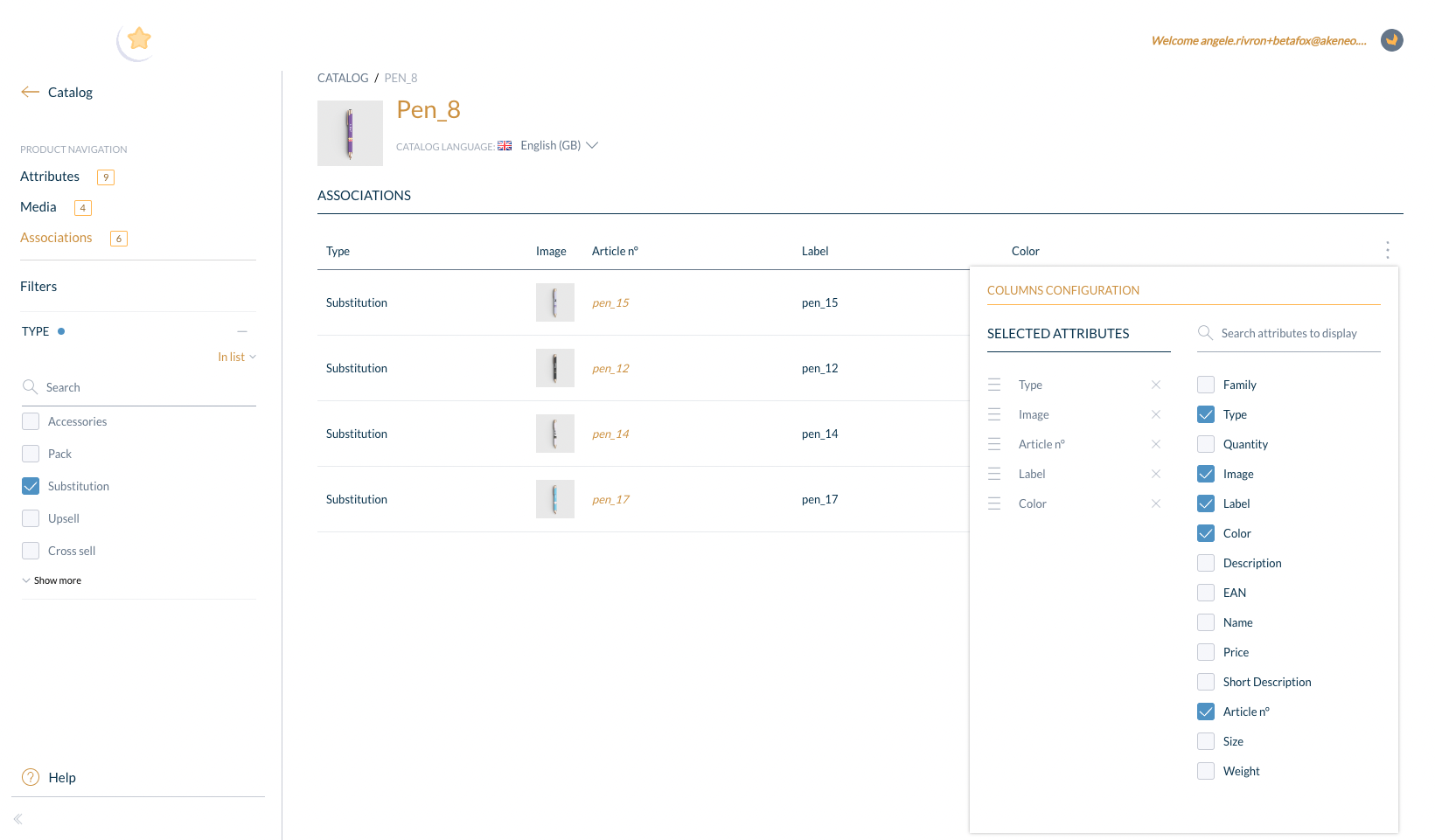
The Associations section, showing linked products and association type filters on the left side panel.
Use the filters on the left to narrow the list by association type.
To customize the columns shown in the associations table, click the three vertical dots icon in the top-right corner of the list and select the attributes you want to display or reorder them.