


Access your account information
To access your account information:
- Click on your picture in the top right corner
- In the dropdown, click on My Account to display your profile

Edit your account information
Click on Edit to change your profile information or settings. New tabs will appear once in edit mode: Groups and Roles and Password.
Enterprise Edition clients will also see a Notifications tab to manage notifications for the proposals workflow (feature only available on the EE version).
Your general information
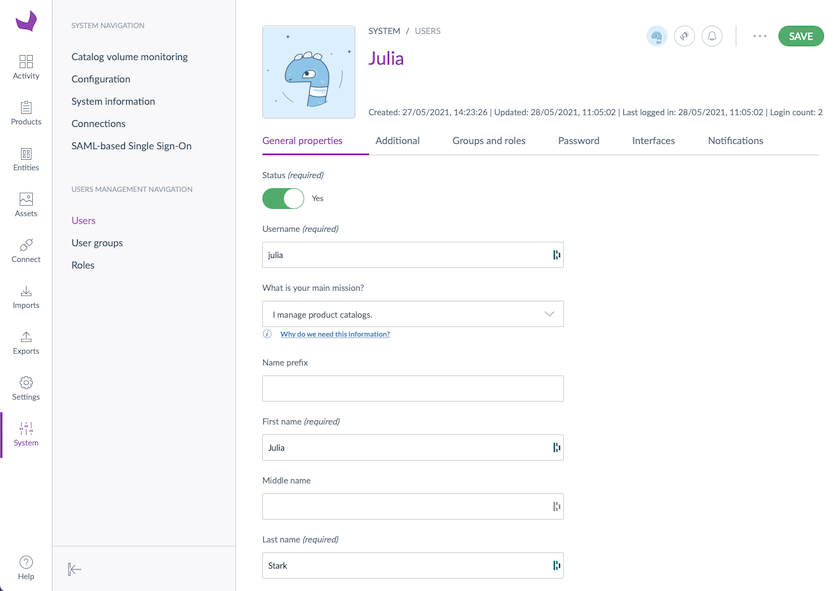
Under the General tab, you will be able to edit your personal information: username, first name, last name, add/remove your picture, and your email address.
You can even select What is your main mission in the PIM. This will help us improve Akeneo PIM and your user experience. By knowing your main mission, we will be able to enhance Akeneo PIM to help you improve your product data, your catalog structure or suggest third parties to connect with your PIM depending on your specific needs.
Your favorite catalog and product grid settings
- Catalog locale: your default locale
- Catalog scope: your defaut channel
- Default tree: your default category tree
- Product grid filters: your default product grid filters. This setting will be used on the product grid and on the published product grid (EE only)
- Default product grid view: your default view used in the product grid.
- Default published product grid view (EE only): your default view used in the published products grid
You first need to create at least one view to be able to see this field and to set a default view in your account.
The search bar available on top of the product grid behaves like a filter, it can be added using the label or identifier filter in the Product grid filters field.
If no default filters are defined, the system attributes (family, groups, status, completeness, creation date, updated date, product identifier, permissions, label or identifier filter) will be used as default filters on the product grid.
Your groups and roles
To edit your user groups and roles:
- Click on the Groups and Roles tab
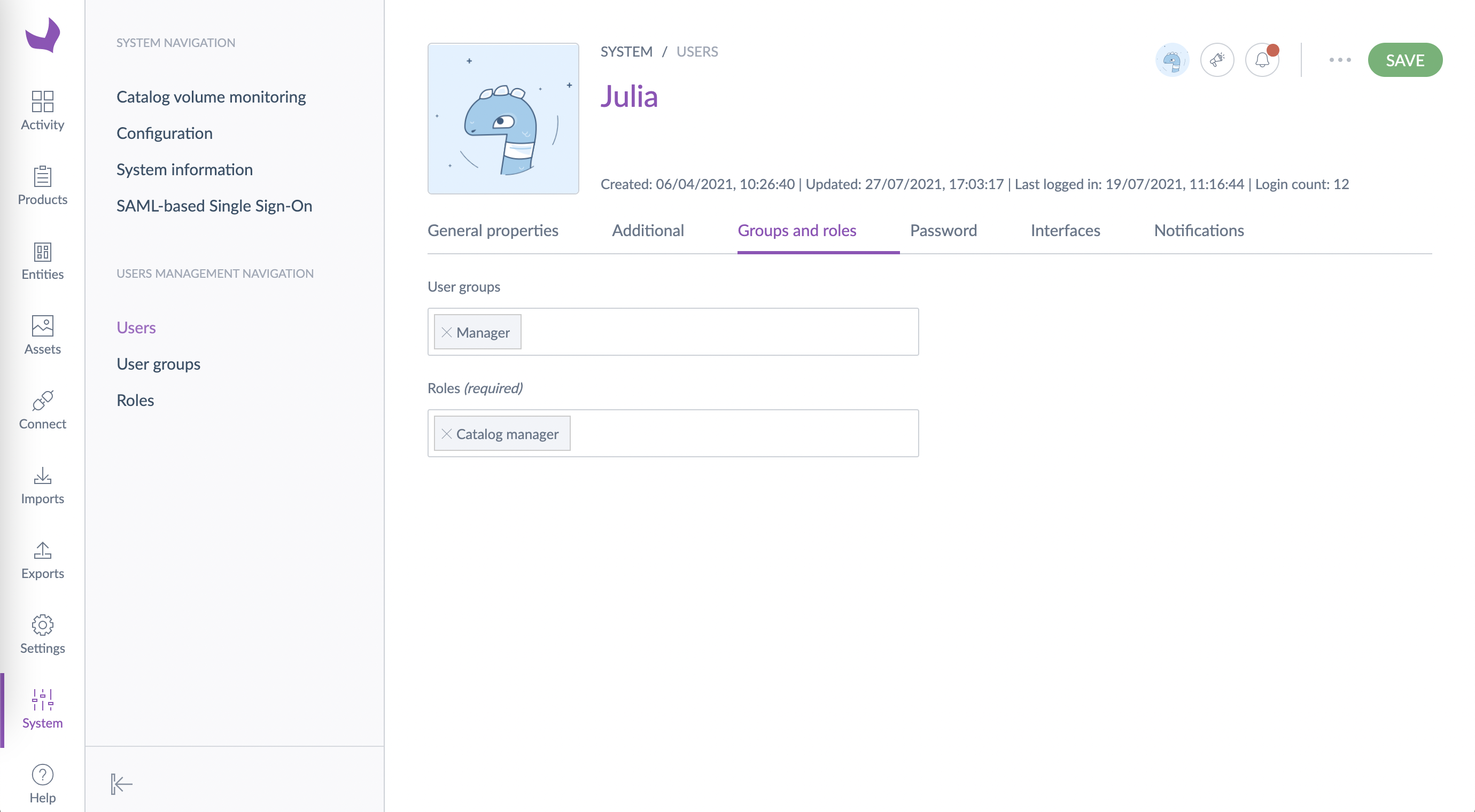
- On the top of the page, you will see the user group(s) you belong to, and then your user role(s). Check/uncheck to change your groups/roles.
- Click on Save to save your changes
Your password
Still in edition mode in your profile account:
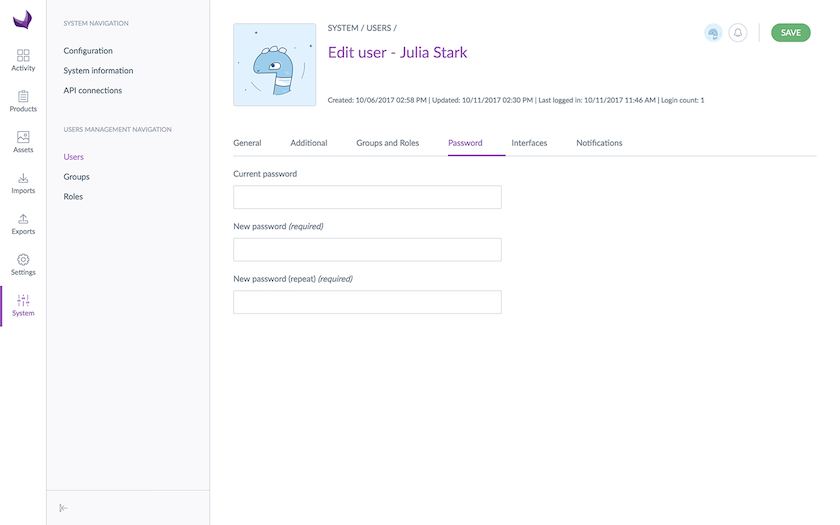
- Click on the Password tab
- Change your password
- Click on Save to save your changes
Your interface default language
You can choose in which language you want your PIM interface to be.
Still in edition mode in your profile account:
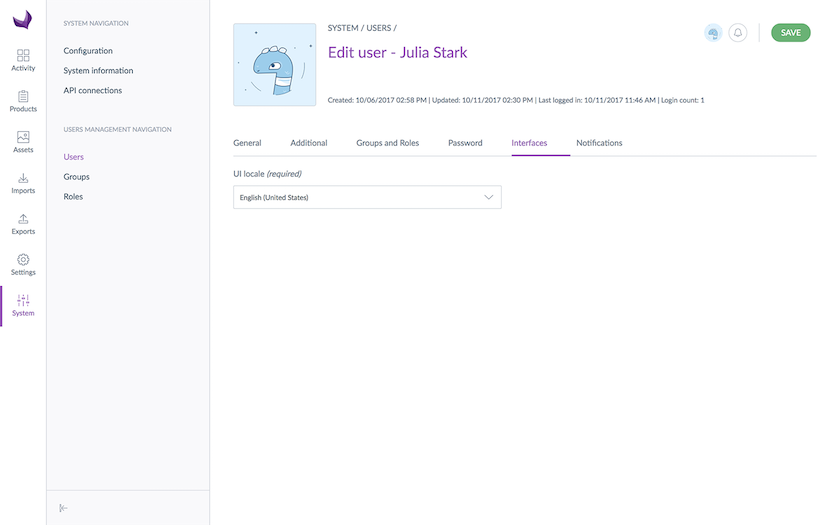
- Click on the Interfaces tab
- Select the default language for your account (UI locale field)
- Click on Save to save your changes
This UI locale is used all over the PIM interface: menus, screens labels, messages… Dates, numbers and currencies will be formatted according to the locale you chose. Below are some examples of formats.
| User UI locale | Date format | Number format | Currency format |
| French (France) | 08/03/2019 | 12,5 | 90,50 $US |
| German (Germany) | 08.03.19 | 12,5 | 90,50 $ |
| English (United States) | 03/08/2019 | 12.5 | $90.50 |
Your preferred label language
You can choose the language used to display catalog labels throughout the PIM, independently of your interface language and working locale.
Still in edition mode in your profile account:
- Click the Interfaces tab.
- Select your preferred language in the Catalog Label Locale field.
- Click Save to apply your changes.
This locale is used to display catalog structure labels, including attribute, attribute option, attribute group, category, family, channel, asset, and reference entity labels.
This setting does not affect:
- Your UI locale, which determines the language of menus, buttons, messages, and other interface elements.
- Your working locale, which determines which localized product values are displayed and edited, as well as the corresponding completeness information.
For example, you can use the PIM interface in English, display catalog labels in French, and enrich product values in German.
Your interface default time zone
You can choose on which time zone you want your PIM interface to be.
Still in edition mode in your profile account:
- Click on Interfaces
- Select the default timezone for your account (Timezone field)
- Click on Save
This time zone is used all over the PIM interface: Product Form meta data and History panel, product grid, lastoperations widget of the dashboard, process tracker, published products grid (EE only).
Your notifications preferences (EE only)
Still in edition mode in your profile account:
- Toggle the yes/no button to the right or left of the notification to edit
- Click on Save to save your changes
If you wonder how to use these preferences, take a look below.
The When new proposal to review notification
If you activate this preference, you will receive notifications everytime you will have a proposal to review.
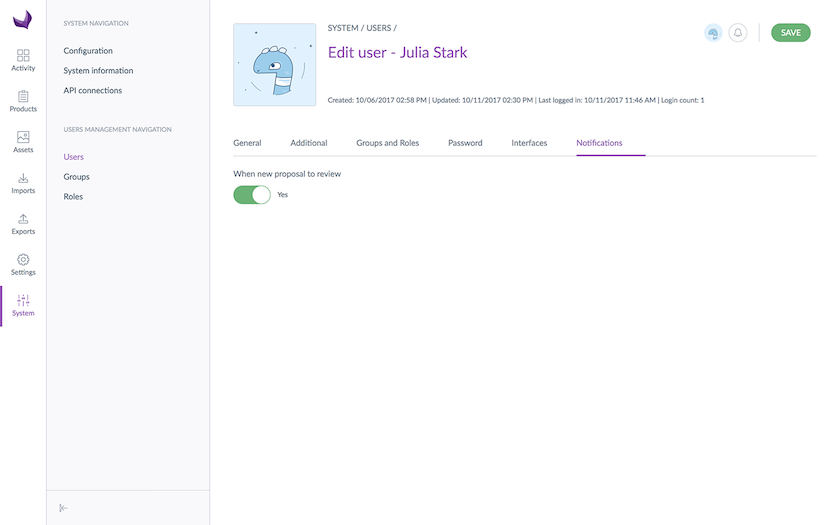
You will only see this option in the case you own at least one product, meaning you have the Own products permission for at least one category. To learn more about this permission, it's here!
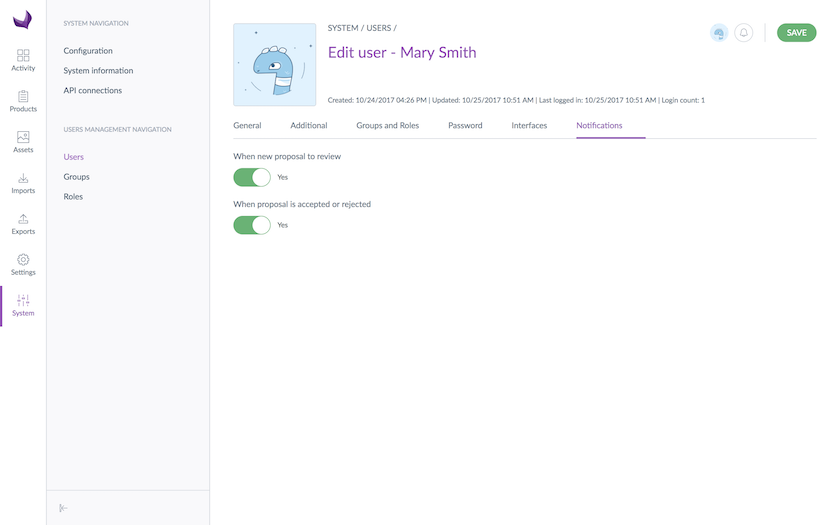
The When proposal is approved or rejected notification
If you activate this preference, you will receive notifications when your proposals are approved or rejected by your reviewers.
You will only see this option in the case you have only edit rights on at least one product, meaning you only have the Edit products permission for at least one category. To learn more about this permission, it's here!
My Modeling suggestion
The My Modelling Suggestions page gives you a personal view of every attribute suggestion you have submitted through the Data Architect Agent (DAA). It's your go-to place to track the progress of your submissions and stay informed on their outcome.

Accessing My Modelling Suggestions
Go to your My Account menu and select My Modelling Suggestions.
What you'll find on this page
The page lists all suggestions you have submitted, with the following details for each:
- Source - The origin of the suggestion (e.g., Catalog Mapping, PX Insights – AI Discoverability) and its submission date
- New attributes - The attribute codes included in the suggestion
- Additional comments - Any context you provided when submitting
- Status - The current state of the suggestion
Suggestion statuses at a glance:
- Generating - The DAA is processing your suggestion. Check back shortly.
- Ready to review - Your suggestion is awaiting a decision from your administrator.
- Applied - Your suggestion was approved and the attributes have been added to the catalog.
- Declined - Your suggestion was rejected. No attributes were created.
The page refreshes automatically while suggestions are in Generating status.
Viewing suggestion details

Click on any suggestion to open the detail panel. You'll see:
- The proposed attribute properties: label, code, type, and whether the attribute is scopable or localizable.
- The AI reasoning behind the suggested configuration.
- Any additional comments you included at submission.
You will be notified by email once a decision has been made on your suggestion.
To understand what happen when you submit an attribute suggestion and how a PIM admin operates, you can access this documentation