


Akeneo allows you to export your search results or a selection of products from the Product grid to a CSV or XLSX file. Use Quick Export to retrieve structured product information for your own reports, analyses, or integrations with third-party tools.
Start a quick export
To export product information directly from the Product grid:
- Search for products in the grid using the appropriate filters.
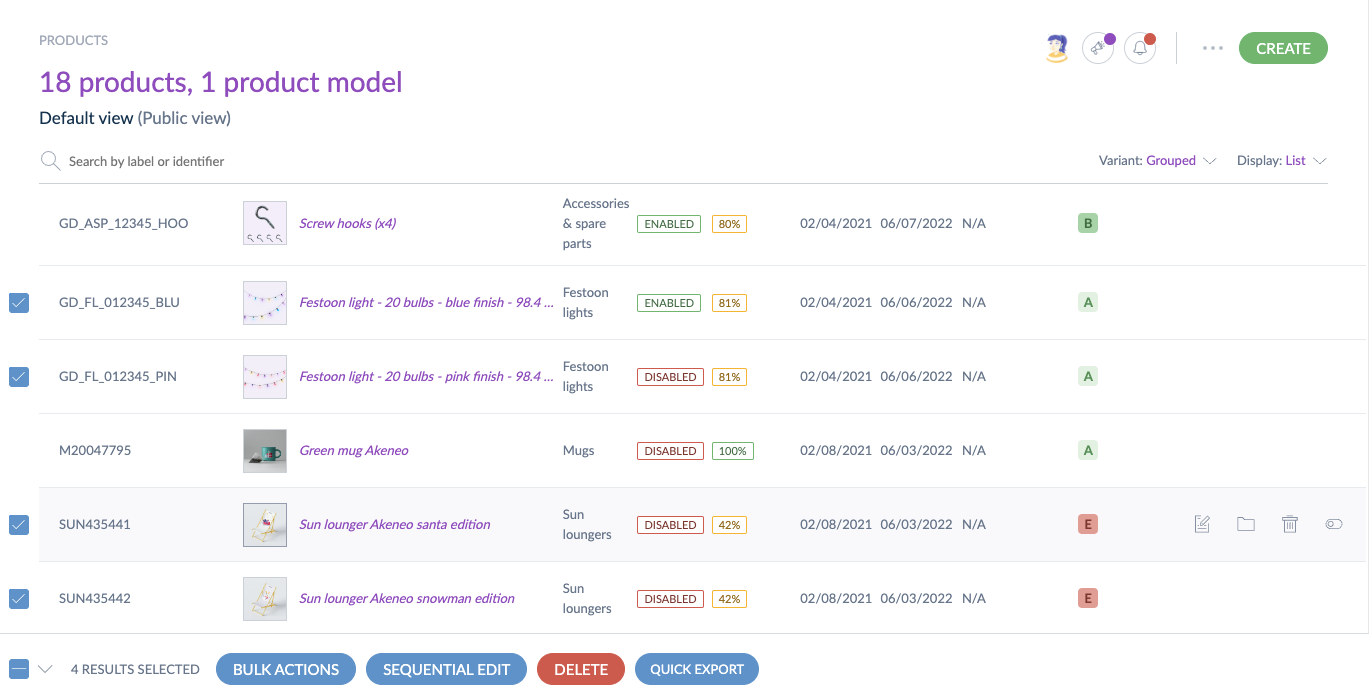
- Select the products you want to export using the selection tool: all recorded products, all visible products on the current page, or individual products by ticking the checkbox in the first column.
- Click Quick Export at the bottom of the screen.
- On the pop-up that opens, select the relevant export options.
Launch a quick export with basic settings
Set Export profile to No to configure the export manually, then adjust the following settings:
| Setting | Description |
|---|---|
| Format | Choose CSV (comma-separated values) or XLSX (Microsoft Excel). |
| Attributes to export | Select Visible attributes only to export only the Attributes currently displayed as columns in the Product grid, or All attributes to export every Attribute. |
| Locales | Select which Locale translations to include for localizable Attributes. If Attributes to export is set to Visible attributes only, the current Locale is selected by default. If set to All attributes, all Locales from the current Channel are selected. |
| Export with codes or labels | Select Codes to export values' codes, or Labels to export values' labels instead. |
| Media | Select Yes to include media files (from Asset Collection, Image, or File Attributes) in the export. |
| UUID | Select Yes to include a UUID column in the export. When enabled, associated products are also displayed with their UUID instead of their main Identifier. |
Click Export in the top-right corner to launch the export.
To save time, your selections are stored in your local session. The next time you click Quick Export, the same options will already be selected.

Understand column order in the exported file
When you export with Attributes to export set to Visible attributes only, the columns in the exported file follow the same order as the columns displayed in your Product grid. This makes it easier to read and cross-reference the exported file with the grid view you are working with.
The exported file organizes columns in the following order:
| Priority | Columns | Behavior |
|---|---|---|
| 1 | UUID (products only) | When the UUID option is enabled, this column always appears first. It has a fixed position and is never affected by the grid column order. This applies only to product exports—product models do not have a UUID. |
| 2 | code (product models only) | For product model exports, the code column is always included at the beginning of the file, even if it is not displayed in the grid. This is the only system column with a fixed position in product model exports. |
| 3 | Grid columns | All columns visible in your Product grid, exported in the exact same order as they appear on screen. |
| 4 | Remaining columns | Only applies when Attributes to export is set to All attributes. All Attributes and system properties not displayed in the grid are appended at the end, sorted alphabetically. |
Example
If your Product grid displays columns in this order: SKU, Color, Family, Description, Name, and you export with UUID enabled and All attributes selected, the exported file columns will be:
uuid → sku → color → family → description → name → categories → enabled → groups → … (remaining Attributes, alphabetically)
Columns excluded from the export
Some columns visible in the Product grid are display-only and cannot be exported. These columns are automatically excluded from the exported file:
- Label
- Image
- Complete (Completeness)
- Variant products
- Hierarchy level
- Product level
These columns are computed values displayed in the grid for convenience. They do not correspond to exportable product data.
Track the progress of your quick export
After launching a quick export, you can track its progress in the Process Tracker. Click on the link in the confirmation message that appears after you launch the export, or navigate to Activity > Process tracker.
The export runs as a background task, so you can continue working in the PIM. When the process is complete, you are the only user to receive a notification.
To view the progress of your quick export, your user role must include the View process tracker permission.
Download your product export
On the job report page, click Download generated files in the top-right corner to download your export.
Two files can be generated:
- A products file named
<NUMBER>_products_export_grid_context_<LOCALE>_<CHANNEL>_<DATE>_<TIME> - A product models file named
<NUMBER>_product_models_export_grid_context_<LOCALE>_<CHANNEL>_<DATE>_<TIME>
Each file contains one line per product or product model, with a column for each exported property. The file format matches the standard Akeneo import/export format for CSV or XLSX.
What is included in the export
- Only the working Channel is taken into account. All Locale information required for the Channel is exported.
- The working Locale does not filter the export.
- Completeness, product status, and classification do not affect what information is exported. All selected products and product models are exported regardless of these criteria.
User permissions
The quick export respects user permissions on Locales and Attribute Groups:
- If you do not have view rights on a Locale, localizable values for that Locale are not exported.
- If you do not have view rights on an Attribute Group, the Attributes in that group are not exported.
Export with pre-configured profiles
For advanced configurations, you can use an existing export profile from the Exports section of the PIM.
- Choose the desired format (CSV or XLSX).
- Set Export profile to Yes.
- Choose the export profile from the dropdown list.
When using an export profile, products or product models are exported according to the profile's configuration. However, Product grid selection overrides the profile's product selection.
Which profiles appear in the dropdown?
- If you selected only products, only product-related profiles appear.
- If you selected only product models, only product model-related profiles appear.
- If you selected both products and product models, profiles related to both appear. If you then choose a product-related profile, only the products from your selection are exported; product models are ignored.
