


See all your measurement families
Here are a few definitions to help you understand what we will speak about in this article.
To see all your measurement families, edit them or create a new one, go to the Settings/Measurements menu:
- Label is the label of a measurement family in the UI locale
- Code is the identifier of a measurement family
- Standard unit is the unit used to convert the other units of a measurement family
- Number of units is the number of units for a measurement family (standard unit included)
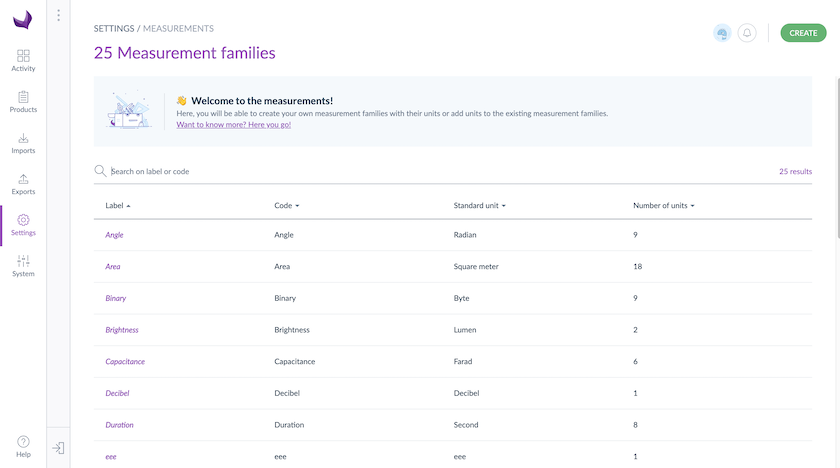
Type in a family code or label in the search bar to find a measurement family. You can also sort measurement family information using the columns in the grid.
How to create a measurement family?
- Go to Settings/Measurements
- Click on Create
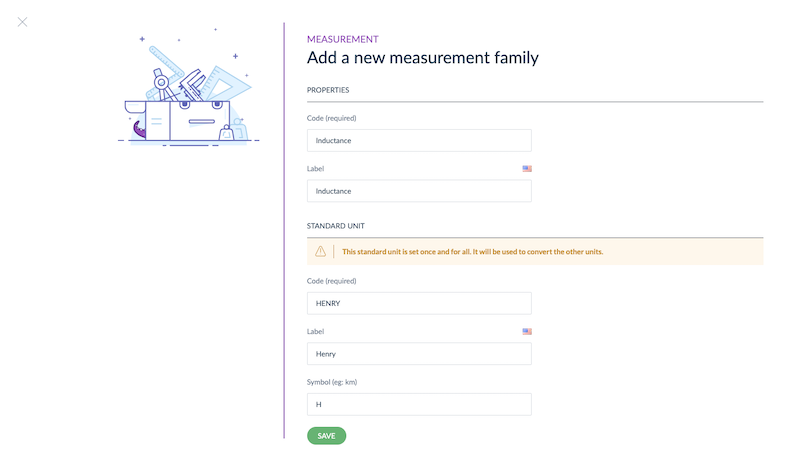
- The pop-in to create a measurement family is displayed
- Enter the new measurement family code (this code is required and must be unique)
- Fill in the label in the current UI locale
- For the standard unit used to convert the other units of this measurement family, add the code (this code is required and must be unique), the label in the current UI locale and the symbol
- Click on Save
The measurement family is now created and the screen to display and add other units opens.
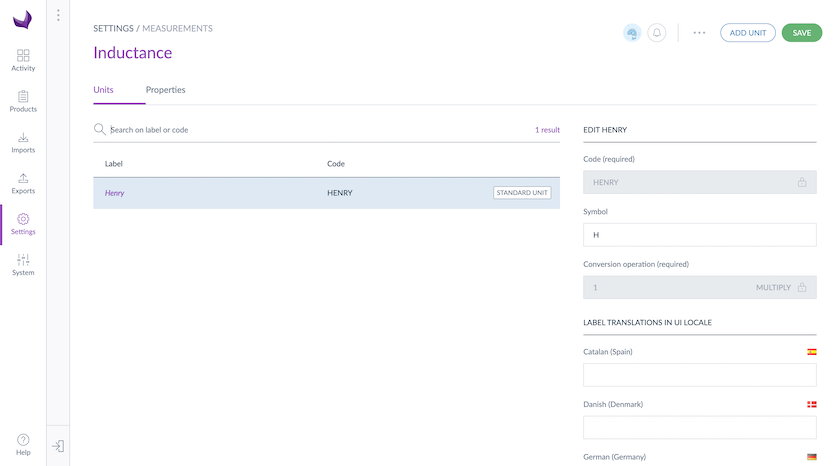
The standard unit is set once and for all.
To guarantee that the PIM is functional and runs smoothly, we defined a volume limitation of 300 measurement families. You cannot create more than 300 measurement families.
Edit properties of a measurement family
To edit a measurement family:
- Go to Settings/Measurements
- Select the measurement family you want to edit in the grid and click on the line or on the edition shortcut
- The screen to display the measurement family opens
- Translate the labels in the Properties tab and click on Save
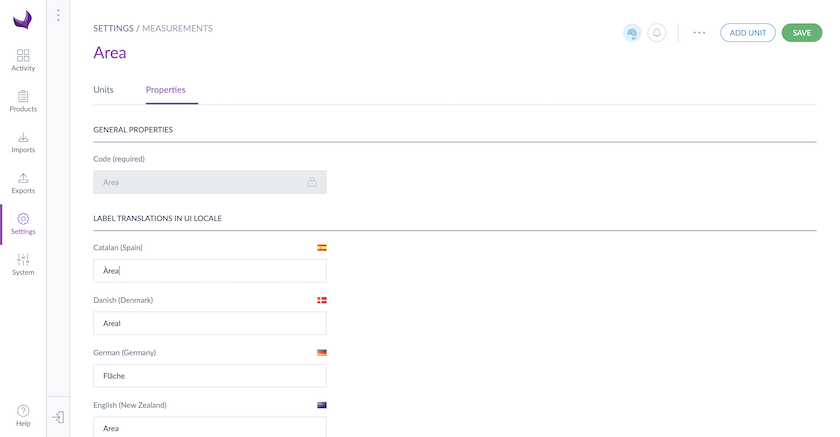
Manage units in a measurement family
To manage units in a measurement family:
- Go to Settings/Measurements
- Select the measurement family to edit in the grid and click on the line or on the edition shortcut
- The screen to display the measurement family opens on the Units tab
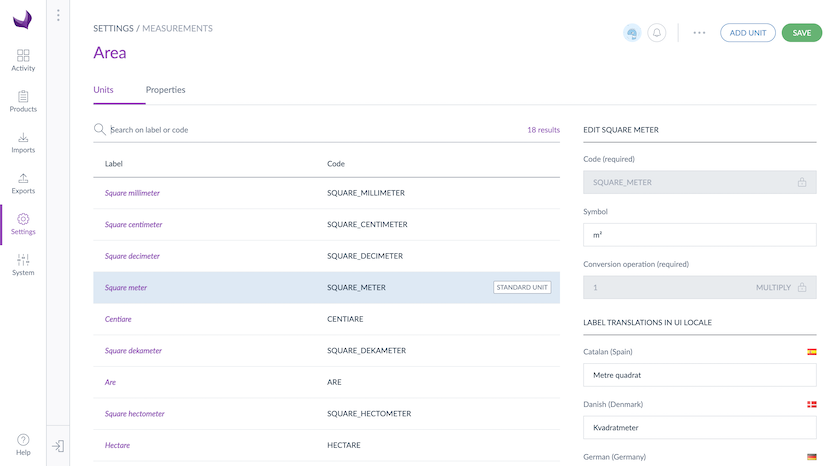
Add a unit to a measurement family
If a product attribute is linked to a measurement family, once a unit is created, you will only be able to edit its translated labels and symbol.
Once you are on your measurement family edit form, go to the Units tab:
- Click on Add unit
- The pop-in to add a new unit to a measurement family is displayed
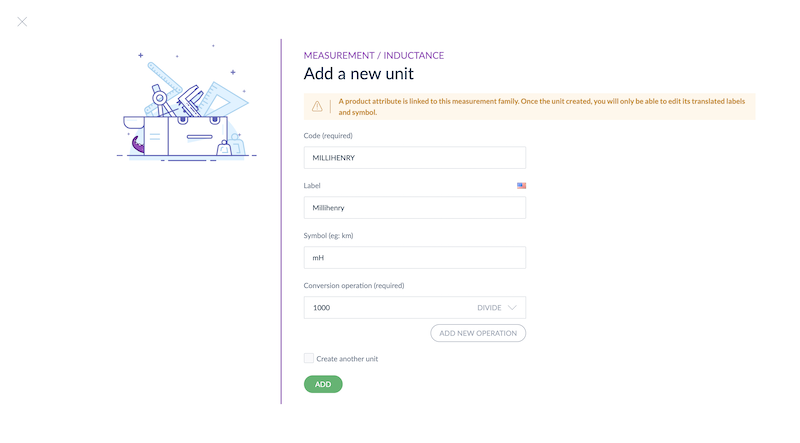
- Enter the new unit code (this code is required and must be unique)
- Fill in the label in the current UI locale and the symbol
- Enter the conversion operations to convert the unit to the standard unit (click on Add new operation to add several conversion operations with their value and mathematical operator, click on the cross to remove an operation)
- Click on Add, the screen with all the units opens
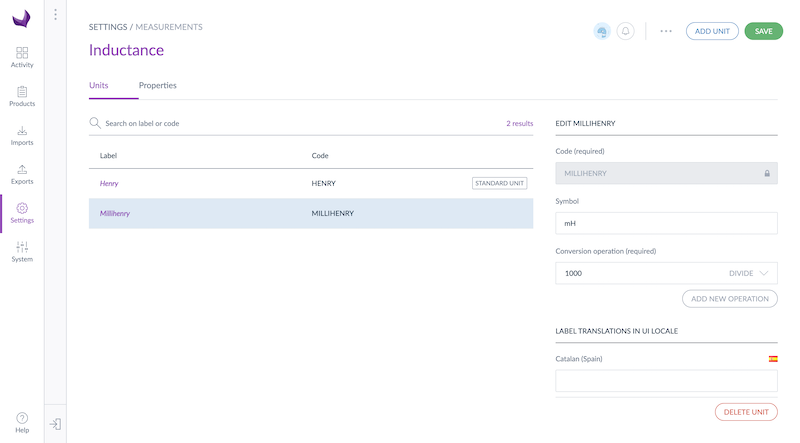
- Translate the labels of the added unit in the Label translations section
- Click on Save
The unit is now added.
One conversion operation per unit is required and you can have a maximum of 5 conversion operations per unit.
If you have several conversion operations, the order of the conversion operations is important.
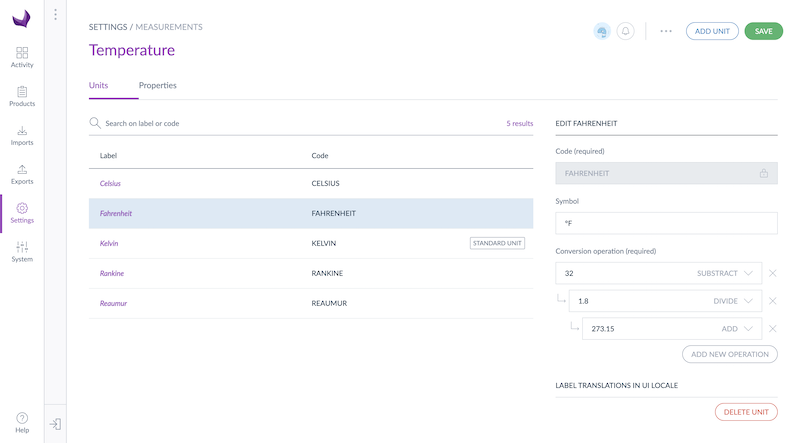
For example, for the Temperature measurement family to convert the Fahrenheit unit to the standard unit Kelvin, you need to define 3 conversion operations:
- Subtract 32
- Divide by 1.8
- Add 273.15
If you have several units to add, you can stay in the Add a new unit pop-in to quickly add as many units as needed:
- Enter the first record label
- Tick Create another unit
- Press Enter
- Add the code, label, symbol and conversion operation for each record
- Once you've done, press Esc or Echap
To guarantee that the PIM is functional and runs smoothly, we defined a volume limitation of 100 units per measurement family. You cannot create more than 100 units per measurement family.
Edit a unit in a measurement family
If a product attribute is linked to a measurement family, you will only be able to change the translated labels and symbols of existing units.
Once you are on your measurement family edit form, go to the Units tab:
- Click on the unit you want to edit in the list
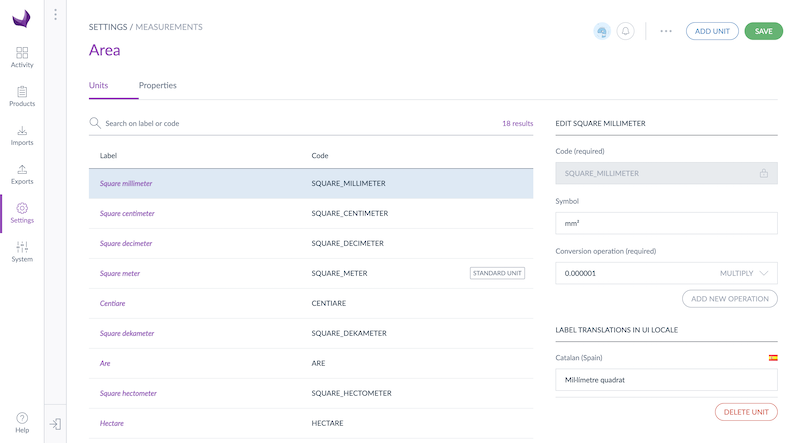
- Edit its symbol
- Edit its conversion operations (click on Add new operation to add several conversion operations with their value and mathematical operator, click on the cross to remove an operation)
- Translate the labels of the unit in the Label translations section
- Click on Save
You can change the following properties of a unit:
- Symbol: the symbol of the unit
- Conversion operations: the operations to convert the unit from the standard unit
- Label translations: the translated labels for the unit for all the UI locales
One conversion operation per unit is required and you can have a maximum of 5 conversion operations per unit.
If you have several conversion operations, the order of the conversion operations is important.
For example, for the Temperature measurement family to convert the Fahrenheit unit to the standard unit Kelvin, you need to define 3 conversion operations:
- Subtract 32
- Divide by 1.8
- Add 273.15
Delete a unit in a measurement family
If a product attribute is linked to a measurement family, you won't be able to delete its units.
Once you are on your measurement family edit form, go under the Units tab:
- Click on the the Delete unit button
- Confirm the action from the validation message
- Click on Save
The unit is deleted.
Delete a measurement family
If a product attribute is linked to a measurement family, you won't be able to delete the measurement family.
- Go to Settings/Measurements to list the measurement families
- Click on the measurement family you want to delete
- Click on ... for other actions and then Delete measurement family on the top right corner
- Confirm the action from the validation message
The measurement family is deleted with all its units.
Per-locale conversion rules on channels
By default, a channel converts measurement attributes to a single target unit for all locales.
With per-locale conversion rules, you can configure a channel to output different units depending on the locale: for example, converting weight to KILOGRAM for fr_FR and to POUND for en_US.
These rules apply both to channel exports and to the REST API when using the ‘Convert measurements’ parameter.
How conversion rules are resolved
When converting a measurement value, the PIM applies the most specific rule available. The resolution order is:
Backward compatibility is preserved: if you do not configure any per-locale rules, channels behave exactly as before.
Configure per-locale conversion rules
To set up per-locale conversion rules on a channel:
- Go to Settings > Channels and select the channel you want to configure.
- Open the ‘Measurement conversion’ tab.
- The tab shows a conversion matrix. Rows represent measurement families and columns represent the locales enabled on the channel.
- For each cell (family × locale), select the target unit from the dropdown. This sets a family-level rule for that locale.
- To override a specific attribute within a family for a given locale, expand the family row and set a per-attribute rule using the Measurement attribute tab.
- Click Save.
- Once saved, the channel will apply those locale-specific units in both exports and API responses.

Per-locale conversion in channel exports
Product exports now support an optional per-locale measurement conversion mode.
A new "With per-locale measurement conversion" toggle is available in the Global settings tab of each standard product, product model and combined export profile (CSV and XLSX).
When the toggle is off (by default), exports behave exactly as before: measurement values are output using the channel's default unit, with no per-locale expansion.
When the toggle is on, the export passes the export locale to the measurement converter, and each locale-specific value is output using the unit defined for that locale on the channel. For example, a French export will output weights in kg, while an English export will output the same products in lb: all from the same channel configuration, without duplication.

Existing export profiles without this parameter automatically fall back to the default behavior (toggle off), so no migration or reconfiguration is required.
Per-locale conversion in the REST API
For the full parameter reference, response format and examples, see the API documentation.
When querying products via the REST API, the convert_measurements parameter controls how metric values are returned:
-
true: returns each metric value converted to the target unit defined in the channel's conversion matrix. Per-locale rules are applied when configured, meaning one additional entry is returned per locale that has a specific rule set on the channel. Decimal precision is resolved following the same priority chain as exports. -
false: returns the raw stored value with no conversion (existing behavior).
Metric values now also include a symbol field alongside the amount and unit fields : so integrations no longer need to maintain their own unit-to-symbol mapping.
Both behaviors are fully backward-compatible. Existing integrations are unaffected.
Decimal places control
We are adding per-cell rounding control directly in the Measurement conversion matrix on channels. Each cell in the matrix are able to carry a precision setting alongside the target unit.
Two strategies are available:
-
Round: rounds the converted value to a fixed number of decimal places (1 to 4). For example,1.7636980974becomes1.76. -
Trim: removes trailing zeros from the converted value. For example,1.5000becomes1.5.
When no per-cell precision is set, the attribute-level decimal configuration is used as the default.

The precision setting will apply only to converted values (when convert_measurements is enabled). Original stored values are not affected.